August 5, 2013

mbed GCC with eclipse KL25Z (Part 1)

I have published my ongoing work, adding GCC to freedom board KL25Z. I have been using eclipse (offline compiling, debugging) with JLink (could be used with Jlink firmware for openSDA, not tested yet due to my prototype board which refuses to flash Jlink firmware). I am writing this on a laptop using windows, therefore paths included here are for windows, blame on me :-) The first part is dedicated to be able to compile an application and get a binary output.

For those who hate eclipse or don't need to debug their code, just skip steps with the eclipse. This should be your step by step routine:
install gcc toolchain, download mbed sources, build mbed library, download makefile, build an application and the last step - copy bin file to mbed file disk.

There's already cookbook for eclipse debugging on mbed eclipse for building and debugging [mbed.org]. I will refer to this guide as mbed cookbook, don't need to repeat what is trivial and usually you set an enviroment only once anyway.
We will use a different approach, clone mbed git repository, set everything in eclipse, use a makefile and set a debugger. Using this approach, you use always newest version of mbed.

1. step - Install eclipse, make and GNU toolchain
Follow Install Eclipse with C/C++ and GNU Support in the mbed cookbook. It provides information how to install eclipse and make.

2. step - Download GNU toolchain
I use GCC ARM, download it from here GCC ARM embedded [launchpad.net]

3. step - Clone mbed git repo and build mbed sources for debugging
mbed git repository is here mbed git repository [github.com]. If you don't use git, neither github, download repo as zip file. This one step is crucial for offline debugging.
As soon as you have mbed source files, there's one important link to visit Mbed Tools [mbed.org/handbook]. I'll describe what you have to do in order to get mbed library. Thus you don't need to visit mbed tools link.

Create a new file named private_settings.py in mbed/workspace_tools. Here's mine set up for ARM GCC 4.7 and also KEIL which is not our concern right now. I use debug info option as default to be able to debug mbed sources.

from os.path import join

ARM_PATH = "C:/Program Files/Keil/TAD/ARM"
ARM_BIN = join(ARM_PATH,"ARMCC","bin")
ARM_INC = join(ARM_PATH,"RV31","INC")
ARM_LIB    = join(ARM_PATH,"ARMCC","lib")
ARM_CPPLIB = join(ARM_PATH, "ARMCC","lib","cpplib")

GCC_ARM_PATH = "C:/Program Files/GNU Tools ARM Embedded/4.7 2013q1/bin"

BUILD_OPTIONS = ["debug-info"]

Time to build our own mbed library, type python build.py -m KL25Z -t GCC_ARM in the command line from workspace_tool directory. This should be an output:


At the end of the output is Build successes:   * GCC_ARM::KL25Z. There was created a directory one folder up, named build. This directory should be added to your project, that's mbed library. There's library libmbed.a and many more files which I don't need to explain here.


4. step - create new project in eclipse
File -> New -> C++ Project
Select Makefile Project -> Empty Project in Project Type, Toolchains, choose Cross GCC.


Go to the project properties as on the picture below, the compiler invocation command should be arm-none-eabi-gcc for GCC and arm-none-eabi-g++ for G++ compiler.
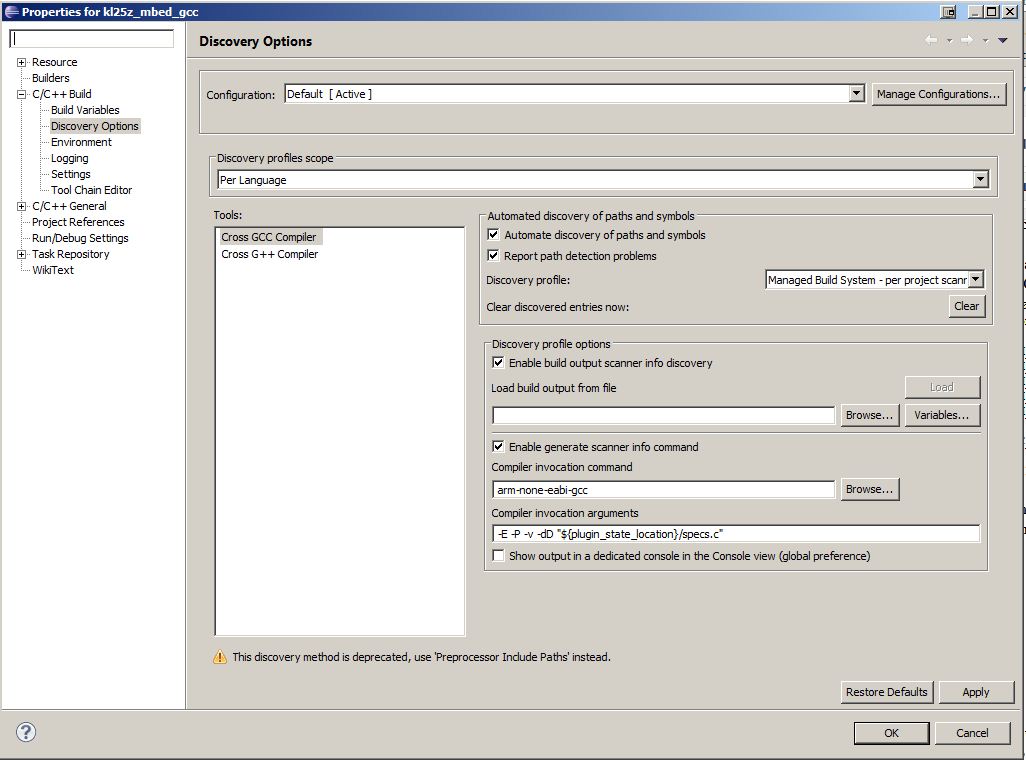


Click on C++ Build and uncheck Use default build command,  type there
C:\PROGRA~1\GnuWin32\bin\make.exe . Note here, that I had a problem with spaces in paths, therefore I changed PATH variable in Environment which is under C/C++ Build options. Please verify there's also folder where you installed GCC ARM (an example C:\PROGRA~1\GNU Tools ARM Embedded\4.7 2013q1\bin).


5. step - get a makefile or create a new one
This step is optional. I wrote the makefile to build an application with mbed. Download it from mbed_gcc_kl25z [https://github.com/0xc0170].

The file structure in mbed changes seldomly, therefore I include here what to check in my makefile and probably there will dwell a problem.
A variable MBED_OBJ contains object files from the mbed source. The dirs variables (INC_DIRS and SRC_DIRS) define directory structure as it is at the moment.


6. step - copy the mbed library and an application
Copy the mbed folder which is inside build directory. It's output from the step 3. I have selected to start with Hello World (KL25z examples [mbed.org/handbook]).

Here is the project tree structure.

mbed folder is folder which is copied from sources build which we did in the 3d step. main.cpp contains hello world application, makefile is my own. Files starting with . (project and cproject) are eclipse project files.


7. step - build an application
If you set everything according to this tutorial, you should be able to build an application.
Here's the output from the console:

Finished building target: out/mbed.elf

Printing size
arm-none-eabi-size --totals out/mbed.elf
   text       data        bss        dec        hex    filename
  26932        216        316      27464       6b48    out/mbed.elf
  26932        216        316      27464       6b48    (TOTALS)
arm-none-eabi-objcopy -O srec out/mbed.elf out/mbed.s19
arm-none-eabi-objcopy -O binary -v out/mbed.elf out/mbed.bin
copy from `out/mbed.elf' [elf32-littlearm] to `out/mbed.bin' [binary]
arm-none-eabi-objdump -D out/mbed.elf > out/mbed.lst
arm-none-eabi-nm out/mbed.elf > out/mbed-symbol-table.txt


The output size is huge (text section), thus we will need to tune our makefile in order to squeeze it.


One last note, I use KL25Z, to set it to any other platform should be trivial. The binary file was generated in the output folder. That one is ready to be copied to mbed.

That's compiling part. I'll continue in the next post with debugging part.


July 21, 2013

Writing solid code by Steve Maguire (book review)

The writing solid code was published years a ago (1993), from Microsoft. The published date makes it outdated. Thus I was skeptical, but the price of the book made my decision.

The hungarian notation is highlighted and used in code samples, not my cup fortunately. Event though I use alike notation in one project which is there as legacy. There are examples from real development, I always enjoy reading those.

One, the most important note I will keep in my head from this book is : Always ask yourself "How could I prevent this bug.".

What book provides
Use prototypes, assert to catch illegal parameters or impossible conditions, debugging version and stepping through code, interface hard to misuse, code examples plus with questions (answers at the end of the book)
 
My rating
2.5 out of 5

July 20, 2013

My git cheating sheet

I'll share here my personal git cheating sheet. Commands are accompanied with small description above them. I'll update this once in a while.

July 10, 2013

Makefile for mbed with GCC on KL25

I pushed a Makefile for KL25Z mbed with ARM GCC to my github Makefile [https://github.com/0xc0170].

I intended to use only eclipse with all those available options. It turned out it was time-consuming to set everything correctly, therefore I wrote this makefile which made everything easier. Small modification should allow you to use it on different targets. I have seen gcc4mbed but that was too much files for my taste. The makefile follows the directory structure which is at the moment. It has changed recently and will be different I believe soon again.

Files which are used are not yet a part of mbed, I am still facing a problem with binary created. It just locks KL25Z and does not run. I'll prepare an article how to debug KL25Z in eclipse with mbed.

June 25, 2013

MBED and other freedom boards

This is just a small update about my activity lately. I have been busy with mbed and porting new target into it. I decided to port at least one more freedom board. First choice was a board FRDM-KL05Z.

I started few days ago, the learning curve is quite fast in the beginning. I'll try to summarize my findings here in another post. The process is still ongoing, because I am not certain if I ported everything correctly, therefore I have to run all tests which are available in mbed to be certain that the target it's ready to be published.

Does any of you want any other freedom board to be part of mbed? Or do you have any problems with freedom boards? It's quite astonishing platform, but still seems to be fresh new, not much projects have been on the internet, or at least I have not searched thoroughly :-)

June 15, 2013

Kinetis L header files

I needed CMSIS header file for the Freedom board FRDM-KL05Z. I have spent at least half hour searching. Once I found it, I would like to share where you can find other headers. If you know any place where are all those cmsis headers available, leave a comment.
I started with KEIL webpage, there are published many header files for kinetis K or kinetis L. But no luck with KL05. Therefore I kept digging, until I found it in the sample code for KL25 (really? KL25 demo code contains other MCU header files).

Kinetis L Sample Code (KL25) [www.freescale.com]
This package is in the revision 6 at the moment. It contains the following CMSIS header files
  • MKL04
  • MKL05
  • MKL14
  • MKL15
  • MKL24
  • MKL25

CMSIS KL26 header file [www.keil.com]
There are more headers, just filter a search on google.

Once I find all possible CMSIS headers for Kinetis L, I'll publish them on github.

June 9, 2013

Kinetis K GCC startup

I have pushed "lightweight" gcc demo to my github repository. A generated CodeWarrior project for Kinetis K with GCC compiler contains a lot of "bloat" in my opinion therefore I decided to write trivial startup without including any libraries (only stdin included for C99 types). C++ support is not present, neither RAM target.

It contains a GPIO demo for the TWRK60N512 at the moment. The demo instantly toogles LED1 on the tower board and LED2 toogles only when the button SW1 is pressed.

The demo contains following files:
  • common/common.h - including purpose
  • cpu/headers/derivative.h - include cpu specific header
  • cpu/headers/MK60DZ10.h - freescale's header file
  • cpu/startup_k60.c - vectors plus reset handler
  • cpu/system_k60.c - system init function which inicializes CPU (clocks - 96MHz). This needs to be edited to reflect desired cpu clock freq
  • cpu/system_k60.h
  • k60n512_flash.ld - GNU linker for K60
  • main.h
  • main.c
  • Makefile
As could be seen, there are no drivers included. The demo itself only contains necessary files to initialize CPU and jump to the main function.

This example could be used with the tutorial which I wrote previously, openOCD with the kinetis K60. I used it as the test project.

Kinetis Kxx gcc startup on github : GPIO gcc Kinetis K (K60) [www.github.com/0xc0170/]

Update1: I added K20D72M board

June 2, 2013

GCC ARM Embedded + Eclipse on Kinetis with JLink

I have been writing my own start-up and a linker command file for K60 Tower board. Unfortunately, I am still having an unidentified problem with OSJTAG, I  had decided to use jlink with eclipse. I don't use yagarto tool chain, decided to go with GCC ARM embedded.
 There's been many resources on the internet, I'll post which helped me to set it correctly.

Getting Started with the ARM GCC Compiler on Windows PART 1 [thehackerworkshop.com]
Guide how to set eclipse development (GCC ARM, make, eclipse). This guide (Part 1 plus part 2) is more detailed than the original one published on emb4fun.

You can skip few steps in PART 2, right to the Step 5 if you are not using the ST discovery board. This is the most important one, once you set everything, add files, you should be able to compile and link your project files.

This is a highlight what you should look for:
  • C/C++ Build - External builder , build command - make (or set PATH correctly)
  • C/C++ Build - Discovery options - set arm-none-eabi-
  • In linker options inside Tool Settings - there's a flag where you type a path to a linker command file (an example : -T ./../Sources/PK60N512_flash.ld)
  • In compiler options inside Tool Settings - there's other flags option where you type at least these two flags -mcpu=cortex-m4 -mthumb (same should apply for assembler flags)

The last step before debugging, is to set gdb commands inside a created debug configuration (click 2x on the GDB hardware debugging to create a new one). This are taken from the example shared on yagarto webpage, targeted for K40. They are valid for jlink.

These are initialization commands:
target remote localhost:2331
monitor flash device = MK60DN512xxx10
monitor flash download = 1
monitor flash breakpoints = 1
monitor clrbp
monitor endian little
monitor speed 1000
monitor reset
monitor sleep 100
monitor speed auto
monitor writeu32 0xE000ED08 = 0x00000000

These are run commands:
monitor reg r13 = (0x00000000)
monitor reg pc = (0x00000004)
break main
continue

I did not want to repeat what you can find online, but if there's anything unclear, not able to debug your application using jlink on any Tower from Kinetis line, let me know and I can expand this into a small tutorial ;)

I am planning to publish a small gcc application for some tower boards, or perhaps all, depends on how much time I'll have these days ;) Because when you look into code what CodeWarrior generates with gcc, you marvel how much lines that code contains, most of it are unnecessary.

Update June 9th: a demo app for TWRK60N512 is published.